
What to do when folder Quick Look preview is not working
If you only want to see what is inside a folder, whether an archive is worth extracting, or whether a Markdown or ebook file is the right one, this guide puts folder Quick Look not working, Finder preview issue into a real Finder workflow.
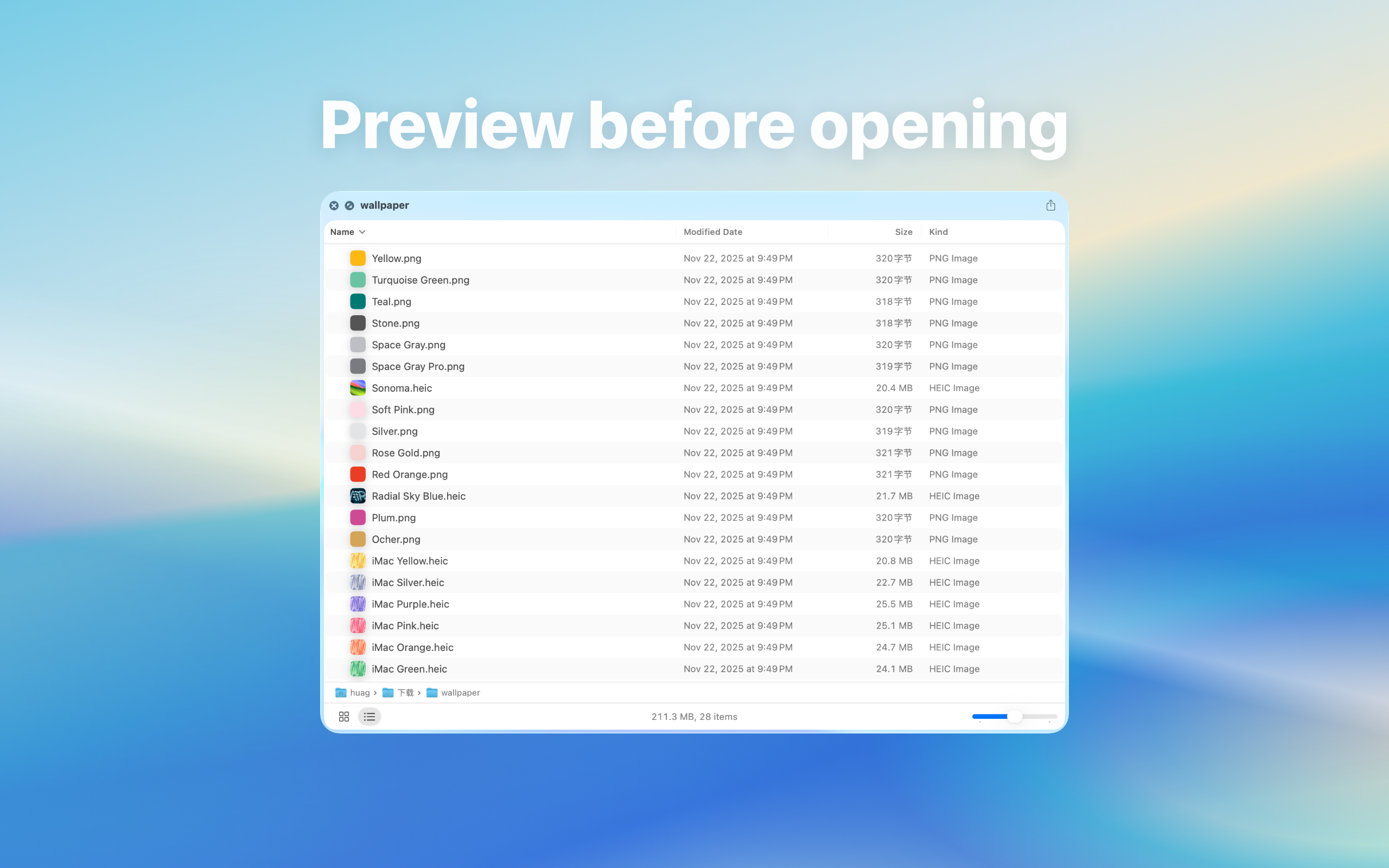
What to do when folder Quick Look preview is not working: direct answer
When folder preview fails, check whether the extension is enabled, file permissions, Finder state, and macOS version.
Decision: When folder Quick Look fails, check extension status, sample support, permission, Finder state, and macOS version in order instead of reinstalling everything immediately.
Steps for What to do when folder Quick Look preview is not working
- Reproduce with a small local folder that has normal permissions, excluding network volumes and damaged files.
- Confirm the relevant Quick Look extension is enabled under Login Items & Extensions in System Settings.
- Retest the same sample after reopening Finder or restarting the Mac, recording macOS and app versions.
How to verify the result
- The same sample previews with the extension enabled and behavior changes as expected when disabled.
- The failure can be consistently attributed to file type, permission, extension state, or a specific system version.
Limitations and stop conditions
If only one folder fails, permission or content may be responsible; if every type fails, contact support with reproducible version and sample details.
A real-world example
For example, several similarly named archives in Downloads can waste time and disk space if each one is extracted. With Quick Preview, previewing the structure first helps you decide which archive to open, move, or delete.
By the end, you should know when pressing Space is enough and when a dedicated app is still needed.
Identify the preview target first
For “folder Quick Look not working, Finder preview issue”, start by checking whether the target is a folder, archive, Markdown file, ebook, or project directory. Each type has a different preview goal.
When previewing is faster than opening
Downloads, project assets, archives, and document collections often only need a quick structural check. Quick Look preview reduces unnecessary app switching, extraction, and accidental opens.
Local preview boundary
File structure, document text, and archive listings are local data. A local Quick Look extension lets you inspect them without uploading files to a web service.
Troubleshooting
- No preview: enable the appropriate Quick Look extension, select the file again, and press Space.
- One file fails: check it in its usual reader and compare another file of the same format.
- Unsupported variant: check current compatibility; renaming the extension does not convert the file.