
What to do when the Mac Dock keeps moving to another display
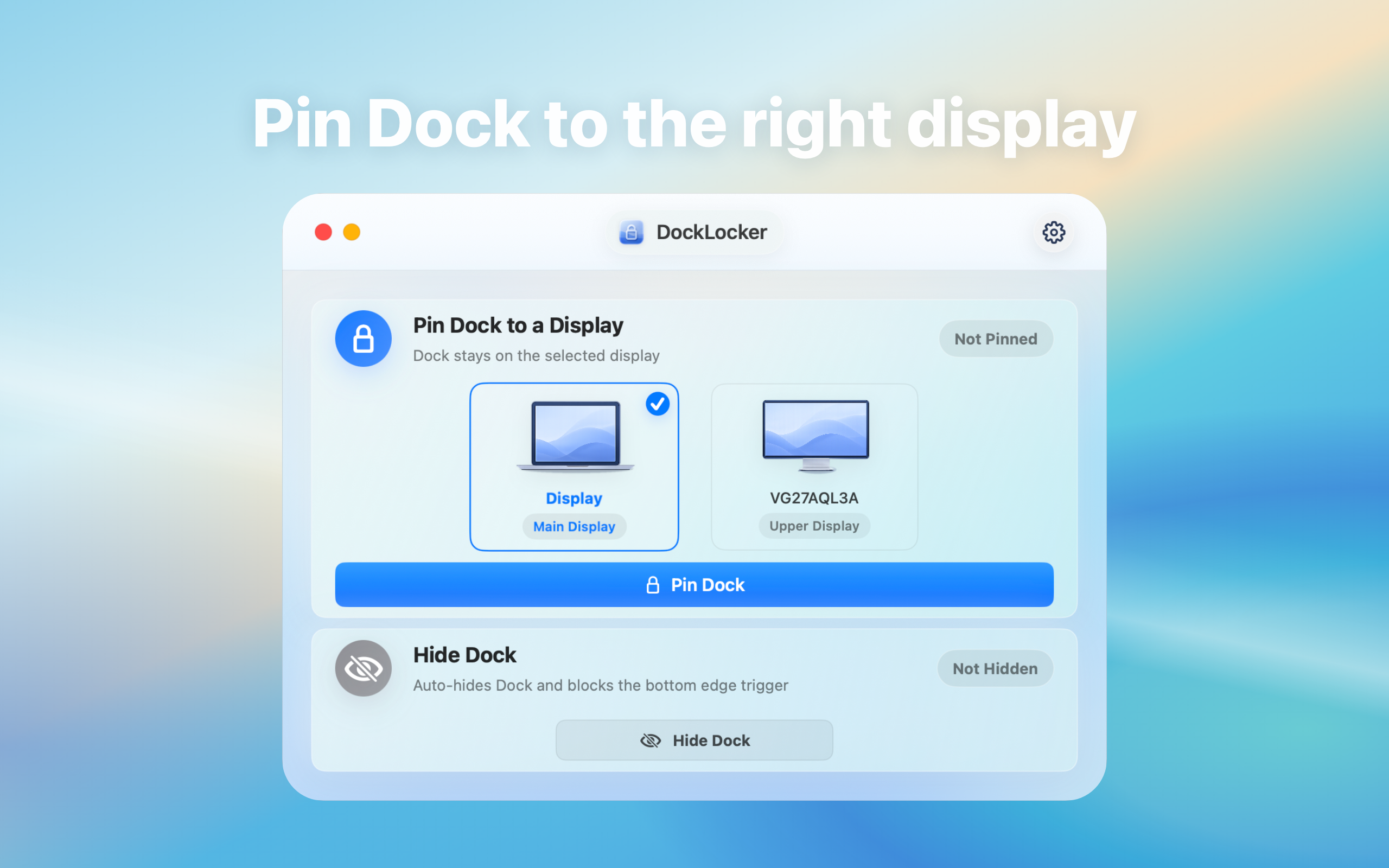
If the Dock jumps to another monitor, record the pointer movement and display arrangement first. DockLocker aims to reduce accidental movement; verify it on your own setup.
Record the starting configuration
Note macOS version, primary display, horizontal or vertical arrangement, Dock position, and the current “Displays have separate Spaces” setting. Reproduce the same pointer movement in normal and full-screen windows.
Install and enable DockLocker
- Download the DMG here and drag DockLocker into Applications.
- Open it and follow its prompt to grant Accessibility access in System Settings → Privacy & Security.
- Enable locking from the menu bar and repeat the original pointer movement.
- Check accidental Dock movement, intentional window switching, full-screen use, and screen sharing.
If the Dock still moves
Confirm the app is running, locking is enabled, and Accessibility access is active. For wake or reconnection issues, check the display layout and toggle locking once. If the problem remains, record your system version and reproduction steps instead of changing unrelated settings.
Verify before relying on it
Compare the same pointer path before and after enabling the lock, then test wake, display reconnection, and full-screen switching. One successful setup is not proof of support for all layouts. Disable locking and revoke the app’s permission when you stop using it.