
What clipboard history does on Mac
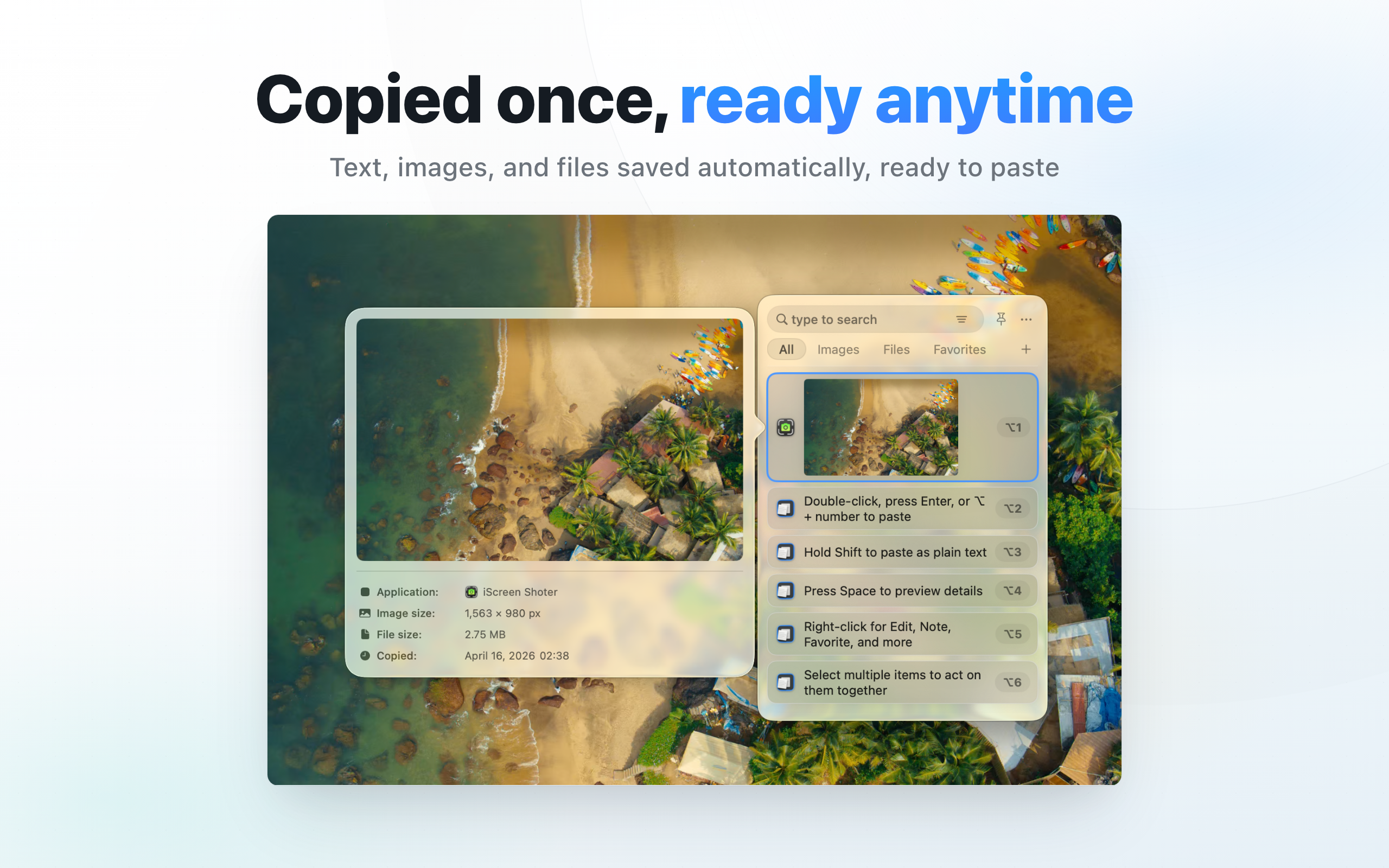
Start with history your Mac has already recorded. Choose CopyHistory when you also need to organize and reuse text, links, images, and files. Installing a clipboard manager cannot recover content it never recorded.
Try the built-in history first
In macOS Tahoe 26, open Spotlight with Command–Space, then press Command–4 for Clipboard history. Enable it if prompted, search for an item, copy it, and paste into your destination app. Other macOS versions may have different capabilities. See Apple’s Clipboard history guide.
When CopyHistory is useful
For recurring project links, reply snippets, or reference material, use search, type filters, favorites, notes, and custom lists to organize what you have captured. Judge the app by the reuse workflow you need, rather than history alone.
Try three non-sensitive items
- Open CopyHistory and copy sample text, a public link, and another text snippet in sequence.
- Search for part of the first item; clear type filters if it is missing.
- Favorite a reusable item and add a note explaining its purpose.
- Group related items in a list, then copy and paste one into a test document. Check that it is the intended item.
If an item is missing
Separate never-recorded content from deleted or filtered content. Return to the original document for items that were never captured. For existing history, clear filters and search a distinctive phrase. Reinstalling cannot reconstruct unknown clipboard content.
Keep useful items and remove sensitive ones
Delete obsolete records and avoid retaining passwords or customer information. Check the current version’s retention and exclusion settings. Verify capture, search, reuse, and deletion with sample content before making it part of daily work.